
How to set the Printing Settings
provided by
the OpenOffice.org Documentation Project
Table of Contents
1. Printing a range
OpenOffice.org gives you the ability to print a selected zone of your spreadsheet. To see how to perform this action:
- Highlight the zone that you wish to print (it may be, for example, only the result column, while you don't want to print the intermediate figures).
- In the Format menu, select 'Print Range' and then 'Define'.
- Your range is now defined and you can see it highlighted in your sheet with
a thicker line.
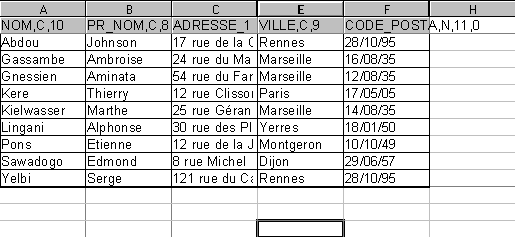
In the page preview (File-Page Preview), you can verify that only the selected columns and rows will be printed. - You can add as many printing ranges as you wish, you need only to select
the new zone and under Format-Print Range, choose 'Add'.
Pay attention! Each zone will be printed on a separated page. - To verify (or modify) the zone you chose, select Format-Print Range-Edit...
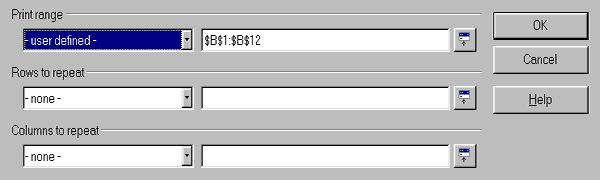
The printing range selected is displayed in the first line called 'user defined'. - The following two lines are related to rows or columns that you wish to
repeat while your zone is printed. You can:
- either directly insert the cell references by hand,
- or click the small icon you see to the right of the window, then click and drag the mouse inside your sheet to select the zone you wish to repeat.
2. The Sheet Options
The greater part of the printing options, for a sheet, are accessible with the menu command, Format -> Page in the Sheet tab.
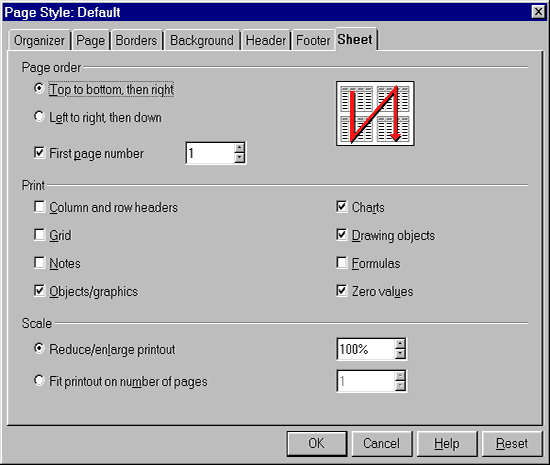
It's self-explanatory, except for the section, Scale, which is a bit obscure:
- 'Reduce/enlarge printout' allows you to decrease or increase the size of the print image of your sheet.
- 'Fit printout on number of pages' allows you to determine the exact number of pages on which the spreadsheet will be printed. The size of the sheets will be adjusted to fit that number.
You can access this window also from the Page Preview by clicking on
the last icon of the Toolbar. 
3. Printing a Sheet
A trick to print faster some particular sheets from a group or workbook (let's say the 2nd and the 4th one):
- click on the tab of the second sheet to select it,
- while holding the CTRL key down, click on the 4th sheet. Both sheets will be selected,
- click on the Print File directly icon and, "hocus pocus", the magic is done!
Note: if you wish to insert the same thing into different sheets, select them as you have just done for printing them, then insert your data in the cell that you can see, and that insertion will be repeated in all the sheets you have selected. (It's the power of a carbon copy on your display!)
You can find other printing options by selecting File-Print... from the Menu bar. If you click on the 'Options' button, you'll have the possibility to suppress the output of empty pages or to print only the selected sheets.
To display a break page preview before printing your sheet:
- select View -Break Page preview from the menu bar.
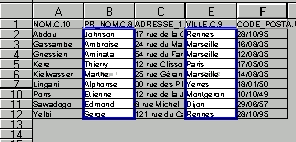
The sections that will be printed are highlighted with a blue border.
4. Credits
Author: Sophie Gautier
Translation: Gianluca Turconi
Thanks: Richard Holt, proofreader and OOo contributor
Integration by: Gianluca Turconi
Last modified: February 24, 2002
Contacts: OpenOffice.org Documentation Project http://documentation.openoffice.org/index.html
